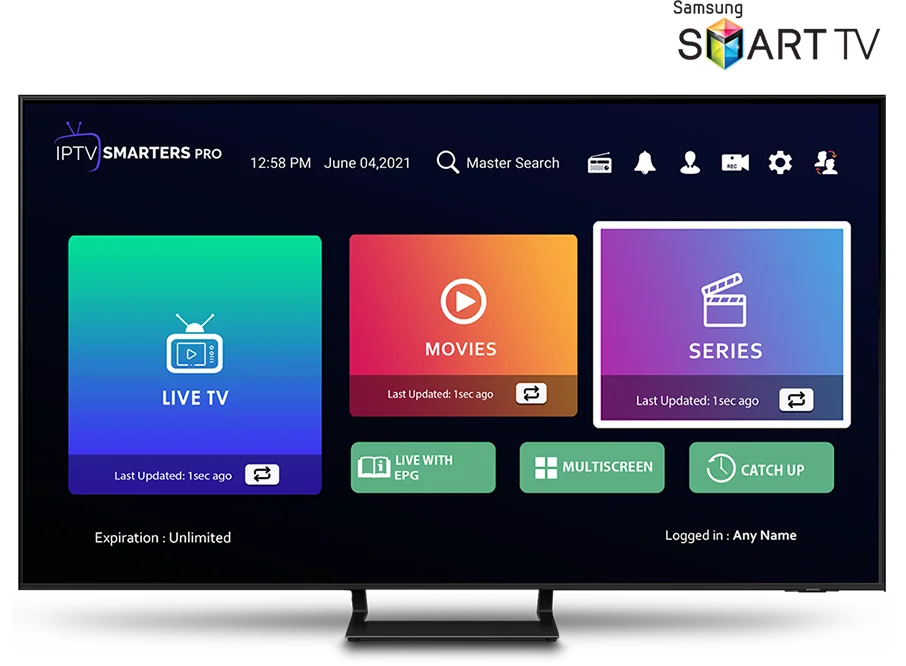
How to Set Up IPTV Smarters on Your Smart TV
This IPTV tutorial walks you through how to set up IPTV Smarters on your Smart TV from start to finish. Whether you own a Samsung, LG, Sony, Hisense, TCL, or any other Smart TV brand, this guide covers everything you need: the prerequisites, the installation method for each platform, both login options, configuring the TV guide, and what to do when something goes wrong.
If you already have an active IPTV subscription with IPTV Smarters Pro 4K, you can have the app installed and streaming live TV in about five minutes. If you don't, follow the link to our pricing page at the end of this guide and you'll receive credentials by email within minutes of subscribing.
What You'll Need Before Starting
There are three things to gather before opening the app store on your TV. First, an active IPTV subscription from a reliable provider such as IPTV Smarters Pro 4K. Second, your login method — either Xtream Codes credentials (username, password, and server URL) or an M3U playlist URL. Both are issued by your provider when your subscription activates. Third, a stable internet connection. For 4K streaming, Ethernet is strongly preferred over Wi-Fi; for HD, a strong 5 GHz Wi-Fi signal works fine.
It also helps to check your TV's operating system. Samsung Smart TVs from 2017 onwards run Tizen OS. LG Smart TVs from 2014 onwards run webOS. Sony TVs from roughly 2015 onwards, and most Hisense and TCL models, run Android TV or Google TV. Each platform has a slightly different app installation flow, which we'll walk through below.
How to Install IPTV Smarters on Samsung Smart TV (Tizen)
On Samsung Smart TVs running Tizen OS, press the Home button on your remote, open the Apps section, and use the search function. Look for "IPTV Smarters Pro" or "Smarters Player Lite." Either app works — Samsung sometimes restricts availability based on region, so install whichever one appears in your app store.
Highlight the app and select Install. Once the download completes, the app will appear on your TV's home screen and in your apps list. Launch it, accept the terms and conditions, and you'll be taken to the login screen.
How to Install IPTV Smarters on LG Smart TV (webOS)
On LG Smart TVs running webOS, press the Home button on the Magic Remote and open the LG Content Store. Use the search function to find "IPTV Smarters Pro" or "Smarters Player Lite." Select the app and tap Install. The app will be added to your launcher bar.
On some older LG models, the IPTV Smarters app may not appear in the Content Store. In that case, the easiest workaround is to use the Smart IPTV (siptv.eu) app or to migrate to a low-cost streaming stick like the Amazon Fire TV Stick 4K.
How to Install IPTV Smarters on Sony, Hisense, TCL, and Other Android TVs
Most modern Sony, Hisense, TCL, Philips, and Sharp Smart TVs run Android TV or Google TV. On these models, open the Google Play Store directly from your TV's home screen and search for "IPTV Smarters Pro." Install it like any other Android app. The Play Store version receives updates automatically and is the most reliable installation path on Android TV.
If the app isn't visible in the Play Store for your region, you can sideload the APK using the Downloader app or by enabling Apps from Unknown Sources in the Android TV settings — though the Play Store route is recommended whenever possible.
How to Log In with Xtream Codes (Username and Password)
Xtream Codes is the easiest login method for most IPTV Smarters Pro 4K subscribers. Open the app, tap "Add User," then choose "Login with Xtream Codes API." You'll see three fields: Any Name, Username, and Password. The "Any Name" field is just a label for your own reference (e.g., "Living Room TV"). Enter the username and password your provider sent you, paste the server URL (also called the host), and tap Add User. The app will sync your live channels, movies, and series within seconds.
How to Log In with an M3U Playlist URL
If your IPTV provider gave you an M3U URL instead of Xtream Codes, choose "Load Your Playlist or File" on the main screen. Enter a name for the playlist and paste the full M3U URL. The app will fetch the content list. M3U is sometimes slower to load on first sync than Xtream Codes, especially with very large channel lists, so give it a moment.
How to Configure the EPG (TV Guide) on Smart TV
The EPG (Electronic Program Guide) shows what's playing now and what's coming up on each channel. Most IPTV providers include an EPG URL with your subscription. In IPTV Smarters, go to Settings → EPG → External EPG, paste the URL, and tap Update. The guide will populate within a minute or two and you'll see programme listings directly under each channel.
Tips for the Best Streaming Quality on Smart TV
Five small adjustments make a big difference to picture quality. One, use a wired Ethernet connection whenever possible — Wi-Fi works, but Ethernet eliminates most buffering complaints. Two, run a quick speed test from your TV's browser if available; for stable 4K, aim for 25 Mbps or better. Three, in IPTV Smarters Settings → Player Settings, set the decoder to Hardware Decoder 1 if your TV supports it. Four, if you have multiple devices on the same network, prioritize the TV via QoS on your router. Five, keep your TV's firmware and the IPTV Smarters app updated through the respective app stores.
Troubleshooting IPTV Smarters on Smart TV
Most setup issues fall into three buckets. If the login fails with "User and password not valid," double-check that you typed the username and password exactly as they appear in your email — they are case-sensitive, and a leading or trailing space will fail the login. If channels load but buffer constantly, switch from Wi-Fi to Ethernet, or change the decoder type in Player Settings. If certain categories or channels are missing, force-refresh the content by going to Settings → Refresh All Categories.
If you're stuck on any of these steps, message us on WhatsApp at +212 620-065864 — we'll walk you through it in real time. Live support is available 24/7 in English, French, Spanish, and German.
Frequently Asked Questions
Does IPTV Smarters work on every Smart TV? It works on Samsung Tizen (2017+), LG webOS (2016+), and any Android TV or Google TV running Android 5.0 or newer. Older TVs may not have a compatible version.
Is the IPTV Smarters app free? Yes, the IPTV Smarters Pro app itself is free to download. You only pay for your IPTV subscription, which is what gives you access to the actual content.
Can I use IPTV Smarters on more than one TV at the same time? That depends on your subscription tier. Our IPTV Smarters Pro 4K plans range from 1 to 4 simultaneous devices — pick the tier that matches how many screens you want to watch on concurrently.
Final Thoughts
Setting up IPTV Smarters on a Smart TV is genuinely a five-minute job once you have your subscription credentials in hand. The main thing is matching the install path to your TV's operating system — Tizen for Samsung, webOS for LG, Android TV/Google TV for almost everyone else — and then choosing whichever login method (Xtream Codes or M3U) your provider gave you.
If you don't yet have an IPTV subscription and want to try our service first, request a free 24-hour trial through WhatsApp or check our subscription plans below.
Ready to start streaming?
Get your IPTV Smarters Pro subscription — plans from $15/month. Works on all devices. Instant activation.
No contract · Cancel anytime · Free 24h trial