How to Set Up IPTV Smarters on Your Smart TV
This IPTV tutorial will show you exactly how to set up IPTV Smarters on your Smart TV. Whether you own a Samsung, LG, Sony, or another brand, this guide covers everything you need for a smooth installation. Follow along and you'll be streaming in just a few minutes.
What You'll Need Before Starting
Before diving into this IPTV guide, make sure you have an active subscription from a reliable provider. You'll need either your playlist URL (M3U) or login credentials (username, password, and server URL). IPTV Smarters Pro is available on Samsung Tizen, LG webOS, and Android TV platforms.
Installing IPTV Smarters on Your TV
On Samsung Smart TVs, open the Samsung App Store and search for "IPTV Smarters Pro" or "Smarters Player Lite." For LG TVs, visit the LG Content Store. Download and install the app—it's free. Once installed, launch IPTV Smarters and you'll see the setup screen.
Adding Your Subscription Details
Select "Login with Xtream Codes API" if you have a username, password, and server URL. Enter your details and tap "Add User." For M3U playlist users, choose "Load Playlist" and paste your URL. The app will automatically load your content library.
Start Watching
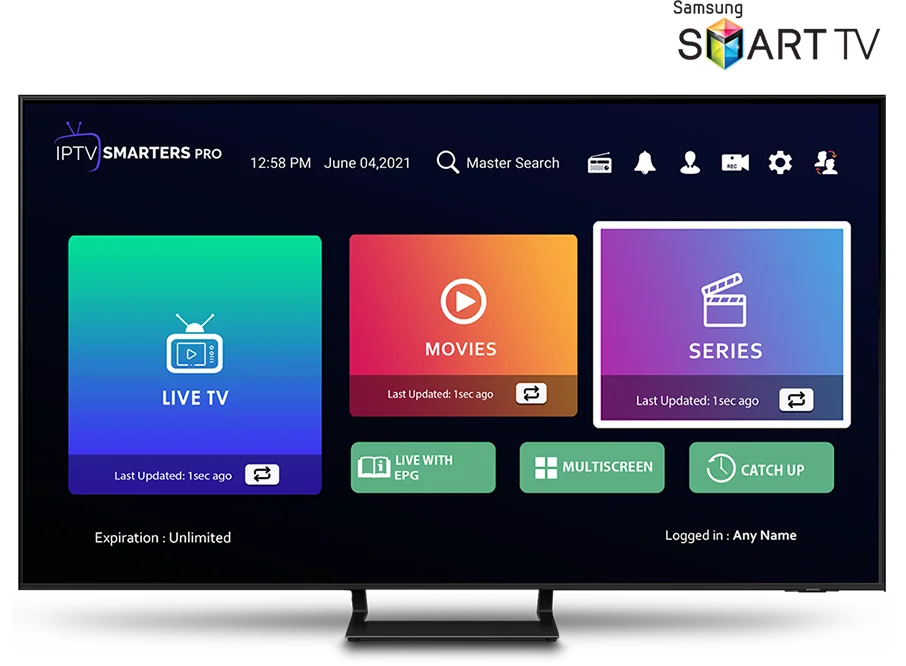
After setup, browse through live TV, movies, and series using your remote. For the best streaming experience, connect your TV via Ethernet or ensure a strong Wi-Fi signal. That's it—enjoy HD and 4K content on your Smart TV with IPTV Smarters.